IBM DB2 XML support
The support for IBM DB2 Pure
XML database includes: multiple server connections, resource management, XML
Schema registration, XQuery and SQL execution, table data editing. A more
detailed explanation can be found in the following tutorial.
About this Tutorial
This tutorial shows you, step by step, how to configure the IBM DB2
support in <oXygen/> XML editor, browse and edit the database tables
(and particularly the XML content of the cells belonging to an XML type
column), register, view or drop the XSD schema used to validate the XML
cell content as well as running SQL/SQL/XML or XQuery
interrogations.
The tutorial assumes that you have a basic knowledge of databases,
SQL, XML technologies and of <oXygen/> XML editor tool. The
explanations and screen shots are given for the standalone version of
the <oXygen/> XML editor. However the same set of features are
available in Eclipse plugin version of the product with minor interface
differences.
How to Configure the IBM DB2 Support in <oXygen/>
There are two notions you need to understand in order to configure the
DB2 support in <oXygen/>: the data source and the connection.
A data source defines all that is needed in order to have a connection
to the database. <oXygen/> uses JDBC as a way to connect, so a data
source defines the DB2 JDBC driver details. If you want to connect to
servers running different versions of DB2 you need to configure a data
source for each DB2 version so that it will properly match the JDBC
driver version.
<oXygen/> currently supports version 9 of IBM DB2 database also known
as pureXML. The recommended way to connect is using the JDBC type 4
drivers.
Go to <oXygen/>'s Preferences->Data Sources and press the New
button in order to add a new data source. Insert a data source name
(make sure that each data source has an unique name) and select the DB2
type from driver type combo box.
You also need to add the following IBM DB2 specific driver
files:- db2jcc.jar
- db2jcc_license_cisuz.jar
- db2jcc_license_cu.jar
In order to get these driver files go to the IBM website: http://www.ibm.com/software/data/db2/udb/, select the Trials
and betas link, enter jdbc in the Search for field, press the link of
the match DB2 Personal Developer's Edition: Redistributable JDBC Type 4
Driver and download the ZIP file that contains the needed jars. After
adding the driver files <oXygen/> will automatically detect the
available driver classes so you can choose the most suited one.
See manual : http://www.oxygenxml.com/doc/ug-oxygen/working-with-databases.html#configure-db2-datasource
Once you have created the data source you may proceed further by
defining one or more connection based on it. The connections can be
configured on the same Preferences->Data Source page.
Start by choosing a unique connection name and set the Data Source
combo box to the already configured DB2 data source. For the URL field
use the specific JDBC driver syntax (for example
jdbc:db2://10.0.0.16:50000/SAMPLE:retrieveMessagesFromServerOnGetMessage=true;
means a connection to a DB2 server database SAMPLE located at IP
10.0.0.16)
See manual: http://www.oxygenxml.com/doc/ug-oxygen/working-with-databases.html#configure-db2-connection
Sometimes you need to work with two database servers (for example a
development sever and a production server) so it makes sense to define a
connection on each database server to be further used when executing
SQL/XQuery or browsing/editing the database content. If the two database
servers have the same version you only need to configure a data source
and add two connections for it.
Database Explorer View
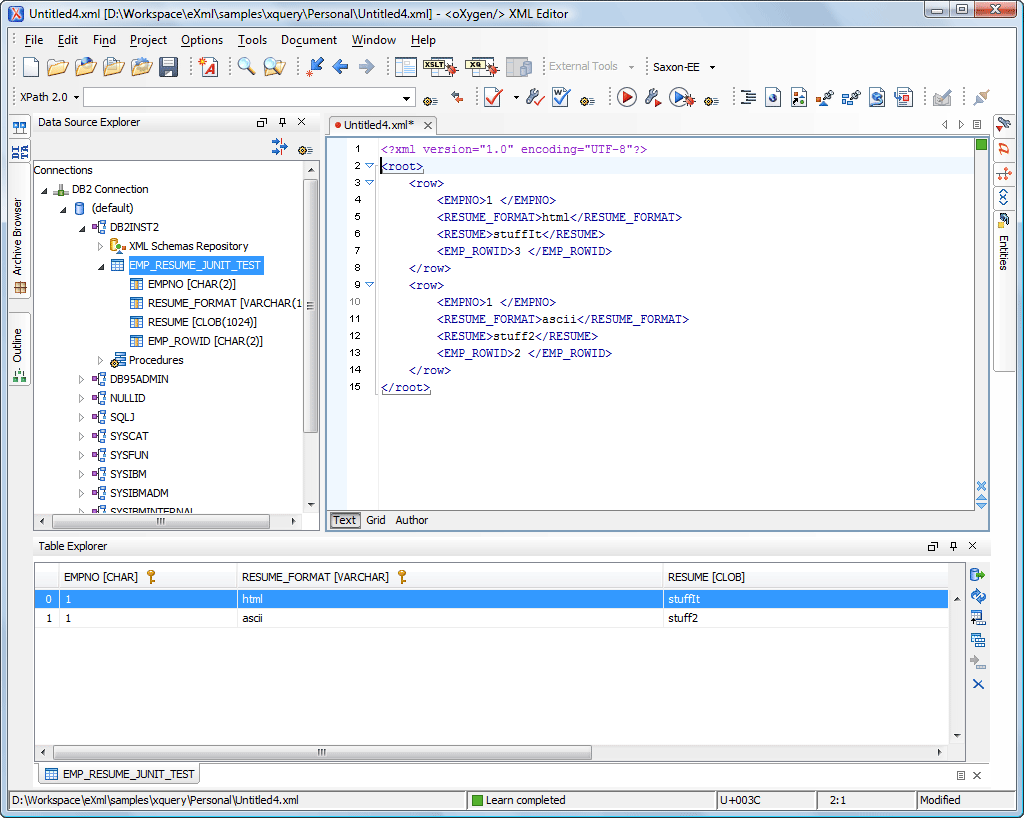
Once we finished the configuration of the connection we are able to
browse the database content using the Database Explorer view from the
Database perspective. Besides this view, the Database perspective is
also featuring a Table Explorer view that will be explained
later.
Drag and drop support between tree nodes and an opened SQL editor is
also available: http://www.oxygenxml.com/doc/ug-oxygen/working-with-databases.html#sql-dnd-support
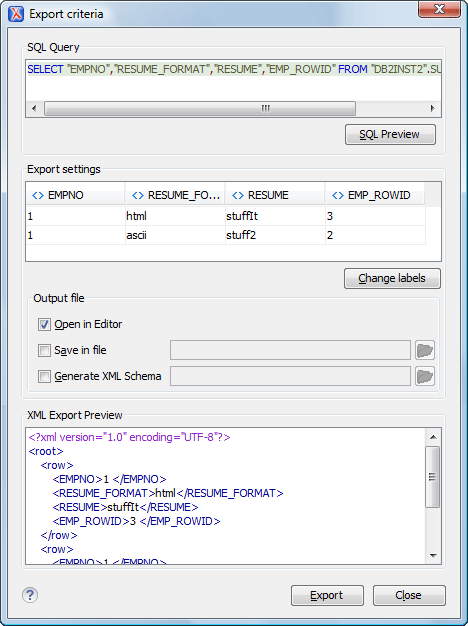
One of interesting operation available on table nodes is the "Export
to XML" action. That allows the export of database table content under
an XML structure. Please note that on demand, <oXygen/> is able create
a basic XSD schema for the table you need to export.
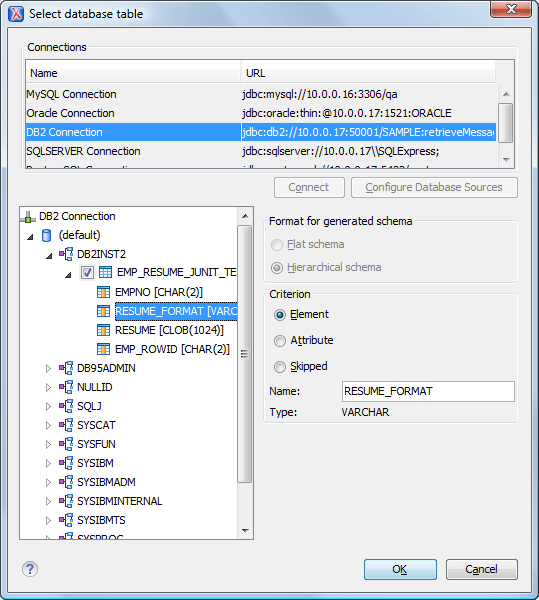
<oXygen/> also features a tool that is able to generate an XSD schema
based on a set of database tables. The tool is available under the
"Tools" menu "Create Schema from DB Structure" action. Basically if you
select a set of tables <oXygen/> can generate an XSD schema that
describes table data definitions and take into account the key
relationships.
Table Explorer View
The Table Explorer view from the Database Perspective is able to
represent a database table content or the result of an SQL
interrogation. If you like to edit a database table content you can use
the Edit operation from contextual menu of the Database Explorer
view.
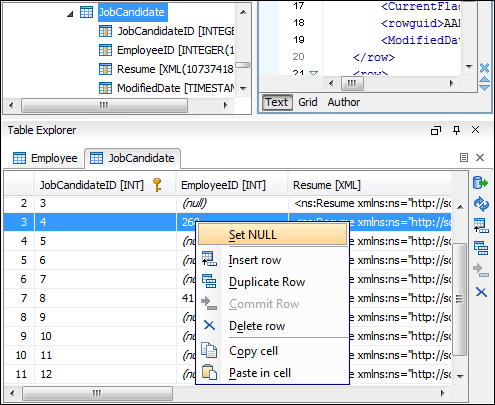
The view allows you to add a new table row or duplicate or delete a
previous one. If the database constraints are violated due to your
changes, you will get a proper error message that will help you to
correct the problem.
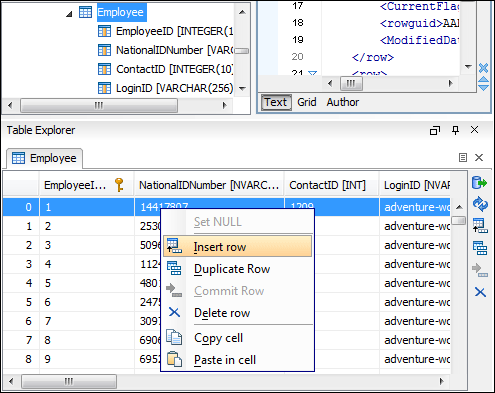
The table columns can be sorted by clicking on the table
header.
Editing XML Content of the XMLType Columns
The true power of <oXygen/> comes when you need to edit content from
the XML type columns. These column data can be opened directly into the
<oXygen/> XML editor so you can benefit of all <oXygen/> editing
features. Saving the edited data in the database is simple like in the
case of a normal file (you can use the Save action). If the database
rejects your changes during this operation you get an error message and
the file status will remains as modified.
There are other interesting operations available for an XML
cell:- Insert XML file - inserts the content of an XML file on the
respective cell.
- Validate - validates the current XML cell content against an
already registered XSD schema.
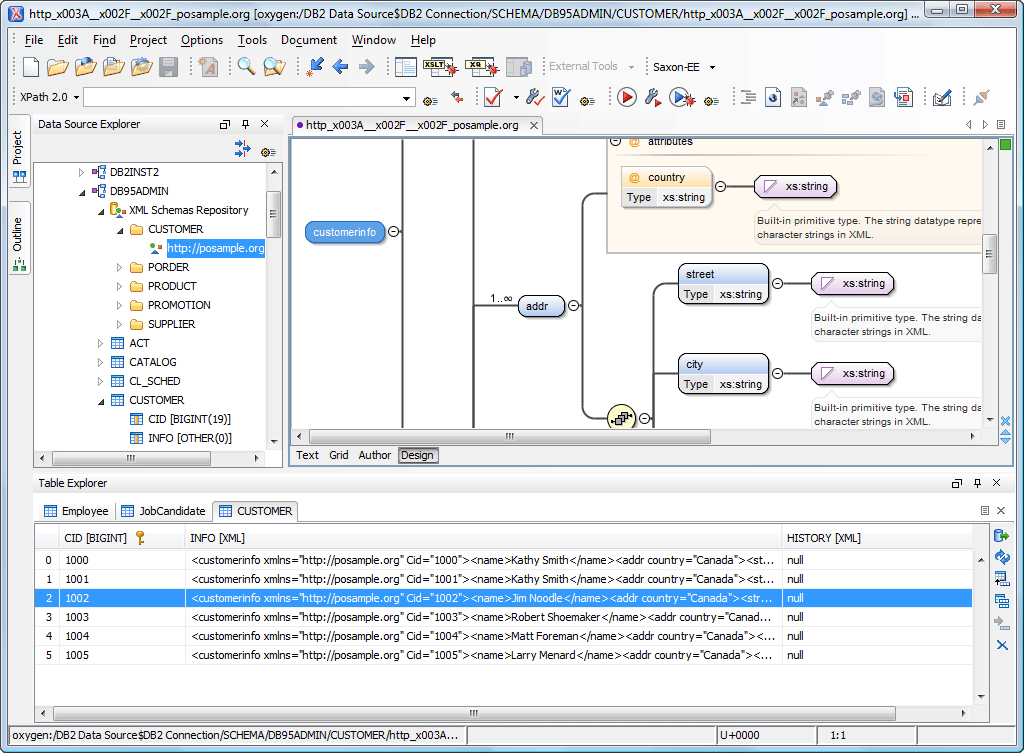
XML Schema Repository
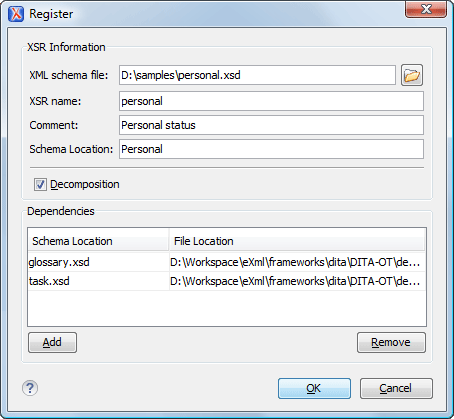
Every DB2 database schema has associated an "XML Schema repository"
where all the XSD schemas available to validate XML content of the XML
type columns are stored. The "XML Schema repository" is available as a
child node in the Database View for any database schema node. You can
expand the "XML Schema repository" node and perform operations like
registering a new schema or dropping an already existing one.
See manual: http://www.oxygenxml.com/doc/ug-oxygen/working-with-databases.html#db2-xml-schema-repository-level
The XSD schema stored in "XML Schema repository" can be viewed into
the <oXygen/> XSD editor. However you cannot modify them (as you only
get a read-only access).
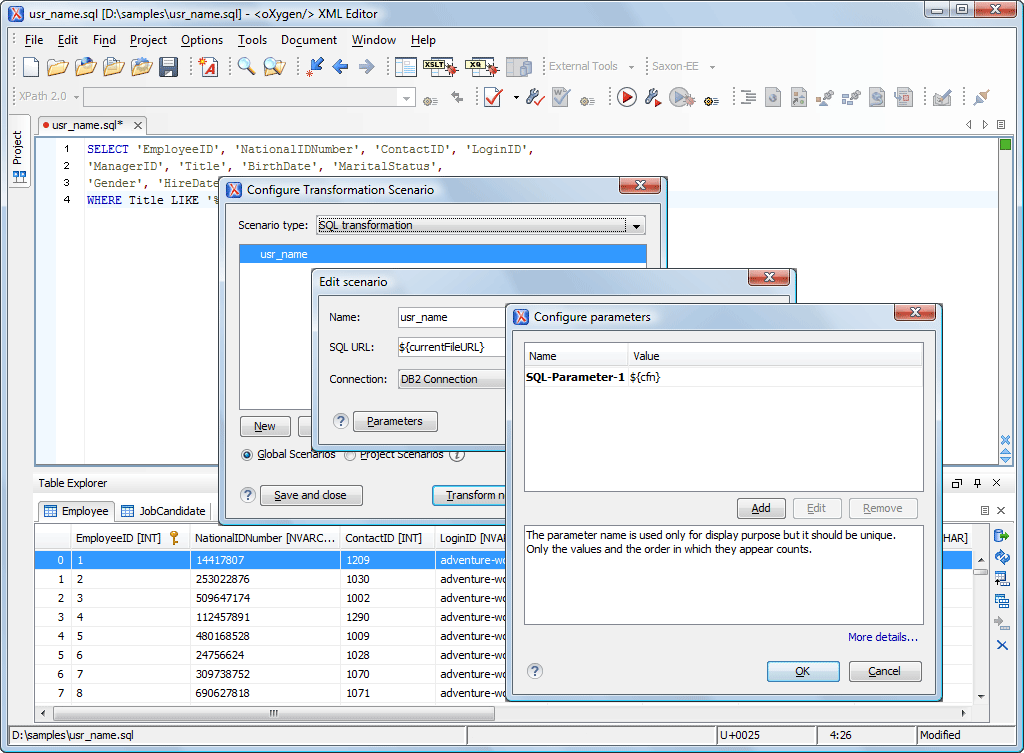
SQL, SQL/XML Support
You can use <oXygen/> to run SQL (including DDL) or SQL/XML
interrogations. For that you need to open an SQL Editor (available from
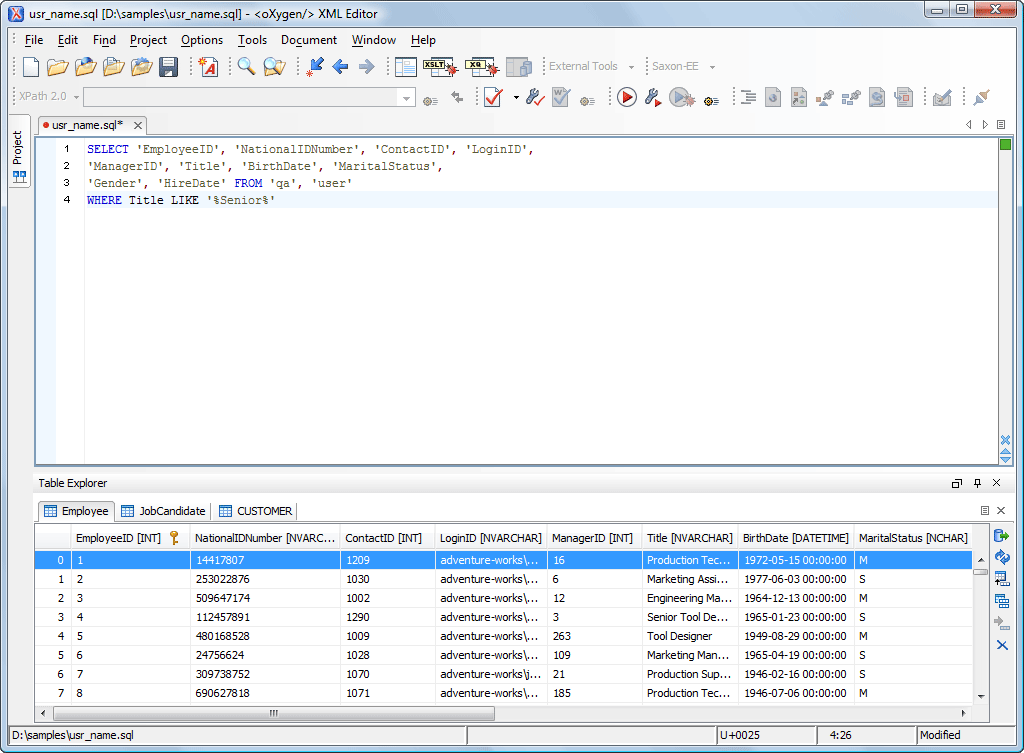
menu New->"SQL Editor") and write your query content. The SQL editor
has an associated scenario where you need to specify as transformer the
previously created DB2 connection.
If you want to reuse the SQL queries, you can specify parameter
markers (?) into the SQL content and add their corresponding mapping
into the parameters dialog from associated scenario. For example we need
to write a SQL interrogation to get a report with all employees from one
department and their last evaluation dates. For this SQL query we should
use a parameter marker (the ID of the department) configurable from
Transformation Scenario so we can easily reuse the query for another
department.
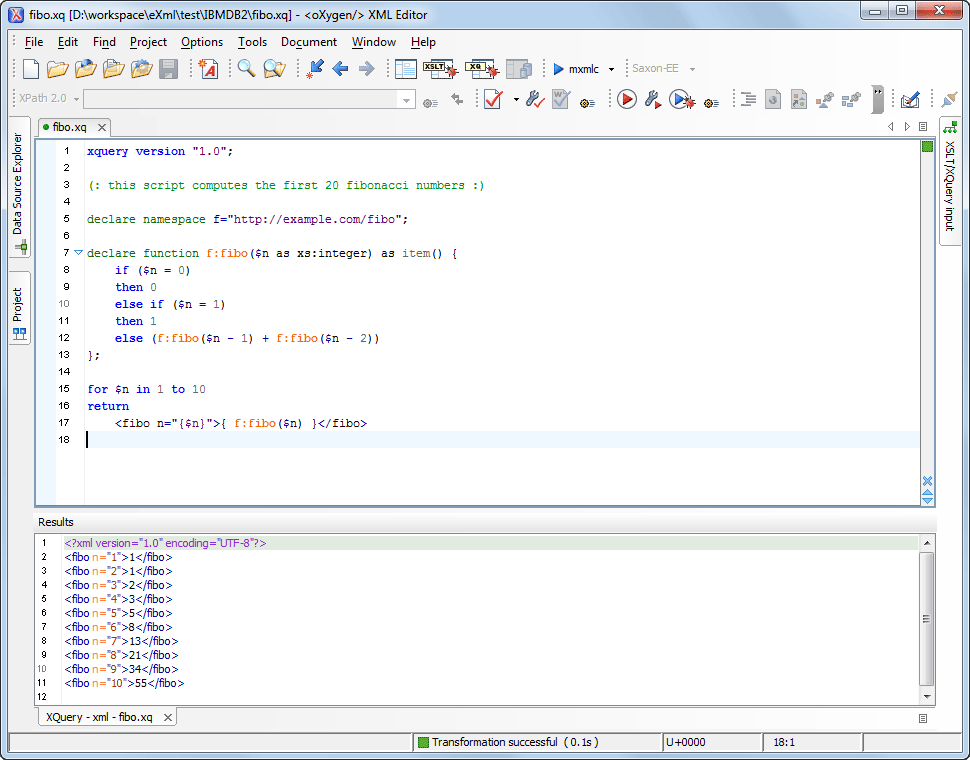
XQuery Support
DB2 pureXML supports XQuery interrogations when working with the XML
content of the XML column types. For example if you like to generate a
XQuery to measure the employee satisfaction levels regarding the company
rules, you can open an XQuery editor (New->XQuery), configure the
transformation scenario to match the DB2 connection for the transformer
field, write the XQuery and then execute it.
|