XSL / XSLT Debugger
XSLT Debugging Perspective
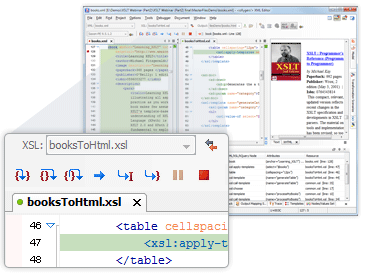
<oXygen/> provides a special layout when entering in debugging mode to show
the XML source and the XSL stylesheet documents side by side and to show
also the results and special XSLT debugging views and toolbars. The
perspective allows you to use the common XML and XSL editor features.
Multiple XSLT Engine Support
<oXygen/> offers XSL debugging support based on the most used XSLT
processors: Xalan-J and Saxon. Due to the open source architecture, they are
more stable and bug free than proprietary XSLT processors, and the most
important: they are true XSLT 1.0 compliant. Our XSLT debugger bundles the
Saxon 6.5.5, Saxon SA and Xalan 2.7.1 transformation engines. Selecting the
processor is very simple and involves changing the selection in the XSL
processor combo box. Although the processors are very similar, sometimes
they produce different output for the same input, so it is best to test your
XSL stylesheets using the same processor type you are using in
production.
Full Control Over the XSLT Debugging Process
<oXygen/> provides all XSLT debugger capabilities: step into, step over,
step out, run, run to cursor, run to end, pause, stop. The current XML and
XSL node reached by the debugging process are shown (see the right part in
the image below) with the following details: an arrow icon to show the
action performed on it (entering/leaving), the name, the resource and the
line. By clicking the arrow the text sections corresponding to the XML and
XSL stylesheet nodes are highlighted in the editor.
Output Result is Linked to the Generating XSL Element.
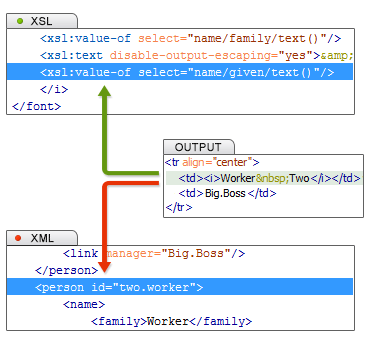
Allows you to easily find out what element from the XSL stylesheet
generated a section of the output. For this you just have to click on the
output text, either in the plain text result panel or in the XHTML preview
panel. The editor will highlight the line in the stylesheet that generated
the output. This allows you to find out immediately what template did not
fire correctly.
The following image shows the right part of the debugging perspective,
with the XSL source in the left and the output in the right. The "december"
string was generated by the xsl:value-of element.
Pause the Debugger Execution with Breakpoints
Breakpoints can be set on both XML or XSL documents used in the
transformation. The breakpoints appear in the left bar of the XML and XSL
editors, as a red dot, and they can be created easily by using the shortcut
key or by clicking the breakpoints area.
Conditional Breakpoints
A condition can be attached to a breakpoint set in the
Debugger perspective so that processing stops only if the condition is
true.
XSLT Call Stack View
The current stack containing both XSL stylesheet and XML source nodes can
be seen at any time during XSLT debugging. The advantage of this approach is
that the source scope on which a stylesheet instruction is being executed
(the last red coloured node on the stack) is easily visible.
Trace History View
Entering and leaving node events are logged and made available in a view
to show the history of the processor execution. You can click the entries in
the list to see the corresponding node into the editor.
Save the Debug Trace
It is possible to save the element trace obtained from a debug session as
XML. This permits comparing different debug runs.
XPath Watch View
You can add custom XPath expressions to the Watch View . The XPath
expressions are evaluated automatically and the XSLT debugger updates the
values dynamically as the processor changes its XML source context. The
results of an evaluation can be a single value, a tree fragment or a list of
nodes and are presented in the Node Set View. The watches are useful when
debugging the expressions for template matches.
Tree View For Presenting Node Set Values
The current context node value or the values of
variables or XPath expressions that are evaluated to tree fragment or list
of nodes are presented in tree views, thus giving access to the whole
variable content. This is useful especially in debugging stylesheets that
keep intermediary results in variables like DocBook for instance.
The user can easily locate the nodes from the tree by simply clicking on
them: the editor will select the corresponding XML source nodes.
Support for Imported/Included XSL Stylesheets and XML Entities
Once a node from an XML entity or an imported/included XSL stylesheet is
processed by the transformation engine, the editor will open that resource
in order to highlight the current node location.
XSL Templates View
The list with all the XSL templates used during the transformation and
their corresponding number of calls are presented in the XSL templates view.
This allows to spot unused templates and the most frequently used templates
as they are ordered based on the hits count.
XSLT Variables View
The debugger lists all XSLT variables and parameters that are visible in
the current XSLT context together with their scope and actual value. The
view is updated as the XSLT processor changes the context during the
transformation.
Dynamic XSLT Output Generation
The output is dynamically presented as it is generated by the XSLT
transformation process. The user can examine directly the output as XML
source or rendered as XHTML.
Capture Multiple Outputs In The XSLT 2.0 Debugger
While executing XSLT 2.0 stylesheets the debugger will
capture the output of xsl:result-document and will present
it in a view inside <oXygen/>.
Scenario Based XSLT Debugging Session
<oXygen/> has a powerful transformation support based on reusable
scenarios. The same scenarios can be used for debugging. The XSLT Debugger
will be initialized with the information from the scenario (source or
stylesheet location, XSLT processor, transformation parameters) when the
Debug scenario action is executed. This allows to easily manage and trigger
different debugging sessions.
XSLT Profiler
You can profile your XSLT stylesheets to identify the
performance issues using two comprehensive data views of the activated
templates: an Invocation tree view and a Hotspots view. The profiling
information can be saved to XML or HTML formats.
The profiling is available for the following XSLT
processors that are bundled with <oXygen/>: Saxon 6.5.5, Saxon SA, and
Xalan 2.7.1. Thus you can profile both XSLT 1.0 and XSLT 2.0
stylesheets.
Invocation tree view
Using invocation tree view, also named call tree, you can examine how
style instructions are processed in a top down manner. The profiling result
shows the duration time for each of the style-instruction including the time
needed for its children and then, when an instruction is expanded, you can
see how the instruction time is composed from child instruction
times.
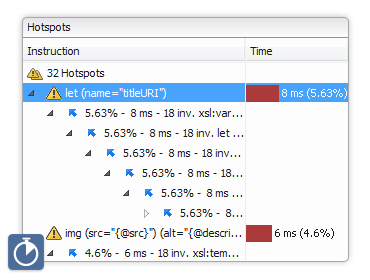
Hotspots view
Using profiler hotspots view, you can immediately detect the time the
processor spent in each instruction. The hotspot only presents the inherent
time of the instruction, that is the total time of processing that
instruction minus the time for processing its children instructions. When a
hotspot is expanded one can see all the different paths that instruction was
called from (a reverse invocation tree), each path being labeled with the
number of invocations, the instruction time on that path and what percentage
from the instruction total execution that path contributes.
|