XML Formatting and Indentation
Smart Indenting
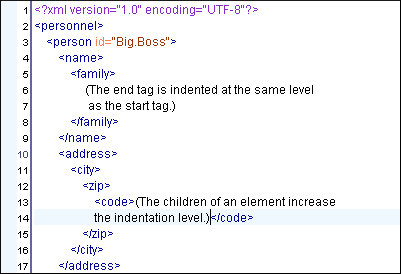
While editing content with Oxygen in Text mode, the document layout is organized and visually efficient, similar to the result of a pretty-print operation. For example, when you press ENTER after an element, it will result in an indent on the next line. If you press ENTER after a closing tag, the cursor will automatically be aligned with the corresponding start tag.
Formatting and Indenting Documents
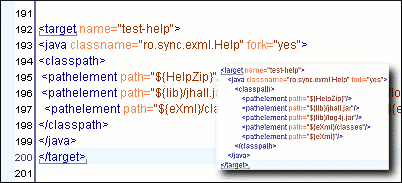
Although writing documents without indentation is a perfectly acceptable practice, it makes editing difficult and error-prone, and also makes it difficult to identify exact error positions. Formatting and Indenting, also known as "Pretty-Print", enables XML documents to be neatly arranged in a manner that is consistent and easy to read.
Pretty-Print for HTML Documents Handles Scripts and Styles
HTML documents often contain scripting and style information. However, the format and indent operations that apply to HTML text content is not suitable for formatting scripts and CSS styles. Oxygen detects these sections and automatically pretty-prints the embedded JavaScript and CSS sections by using JavaScript and CSS formatting options.
Format and Indent Preferences
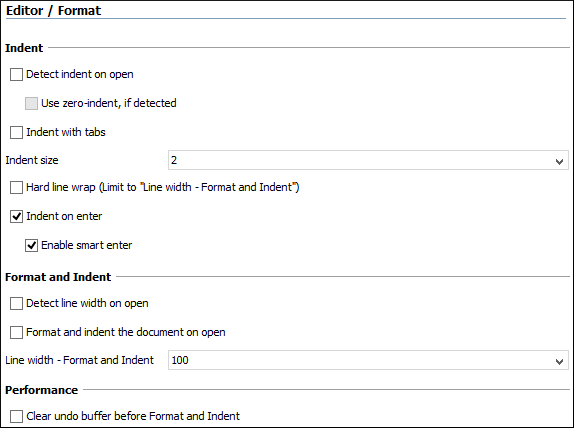
XML documents can be formatted and indented with various options (indent size, the maximum line width, whether or not tabs should be used for indenting, etc.) You can access these settings from the Format preferences page.
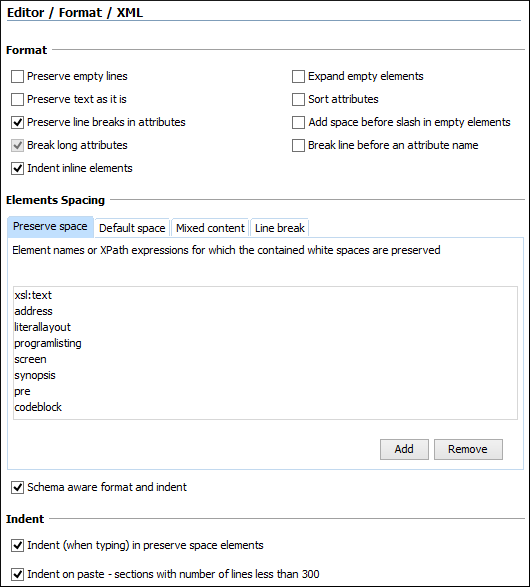
To control the elements that should not be processed, you can use the xml:space attribute and specify its value as preserve or default, depending on whether or not you want to keep the text content unchanged. Alternatively, you can define element spacing from the Format / XML preferences page. For example, as illustrated in the following image, you can specify the elements or XPath expressions to assign to the Preserve space or Default space list. There are also other advanced options that allow you to adjust formatting and indentation settings.
Indent Selection
There is also an alternative to the pretty-print operation. After you select a region of text, you can choose to indent the selected lines from the contextual menu (or press CTRL+I). This indenting action does not perform hard wrapping, since only the whitespaces at the beginning of each line is affected by inserting or removing other whitespaces so that the lines are indented.
XML Source Hard Wrap (Intentional Break)
This feature saves time when writing an XML document with a lot of text content. You can set a limit for the length of the lines in your document using the line width formatting option from the Format preferences page. When this limit is exceeded, the editor will insert a new line before the word that exceeds the limit, and indent the next line. This minimizes the need for manually reformatting the document.
Auto-Detect the XML Formatting Settings
Oxygen includes some options (Detect indent on open and Detect line width on open) that allow the application to auto-detect formatting and indentation settings. When these options are enabled, upon opening an XML document, the editor attempts to detect the indent settings. This allows Oxygen to correctly format (pretty-print) files that were created with other settings, without needing to change your current options. You can also activate the advanced option for detecting the maximum line width to be used for formatting and hard wrapping. This feature was designed to minimize differences created by the pretty-print operation when working with a versioning system (CVS, for instance).