Subversion (SVN) Client
Oxygen XML Editor simplifies document sharing between content authors by including an Apache SubversionTM (SVN) client. The SVN client allows you to browse repositories, check for changes, commit changes, update your working copy, and examine the revision history.
The SVN Client is also available as a separate product
- While Oxygen continues to include SVN Client in its standard distribution, we decided to also make it available as a separate product. If you are just looking for an application dedicated to SVN operations, you should check the Syncro SVN Client website.
When started from Oxygen, the SVN Client is shown as a separate window. This window can also be launched separately as a standalone application.
Why Apache SubversionTM?
Apache SubversionTM was designed as a replacement for CVS. Its features include:
- Atomic commits
- File rename/move/copy preserve the revision history
- The directories are versioned
- Native support for binary files
- Optimized repository access
- File properties and MIME types
- Multiple repository access protocols including HTTP and HTTPS
Subversion is a good choice for sharing/storing large collections of XML files that change frequently. Subversion retains the differences between revisions in an efficient database, and keeps low the network load (only the differences are sent between the SVN client and the server).
Customizable Layout
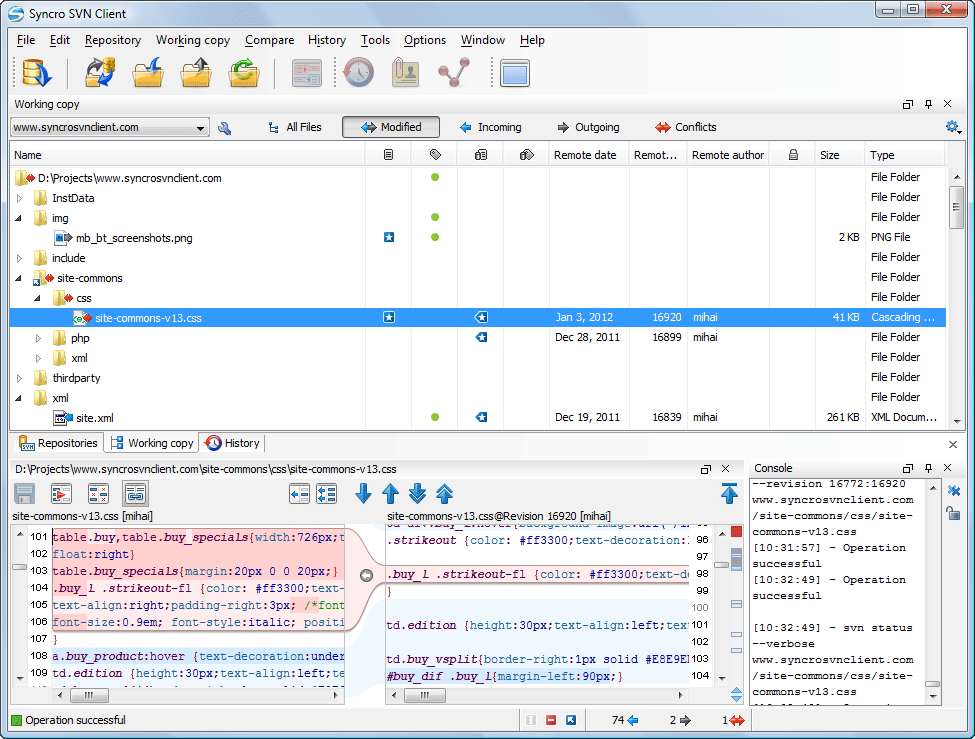
The Oxygen SVN Client is composed of several views allowing you to browse the Apache SubversionTM repositories and your local working copies, compare and merge modifications, and check the revision history. All the views are dockable. This means you can move them to create the optimal layout for your specific needs.
Subversion Repository Browsing
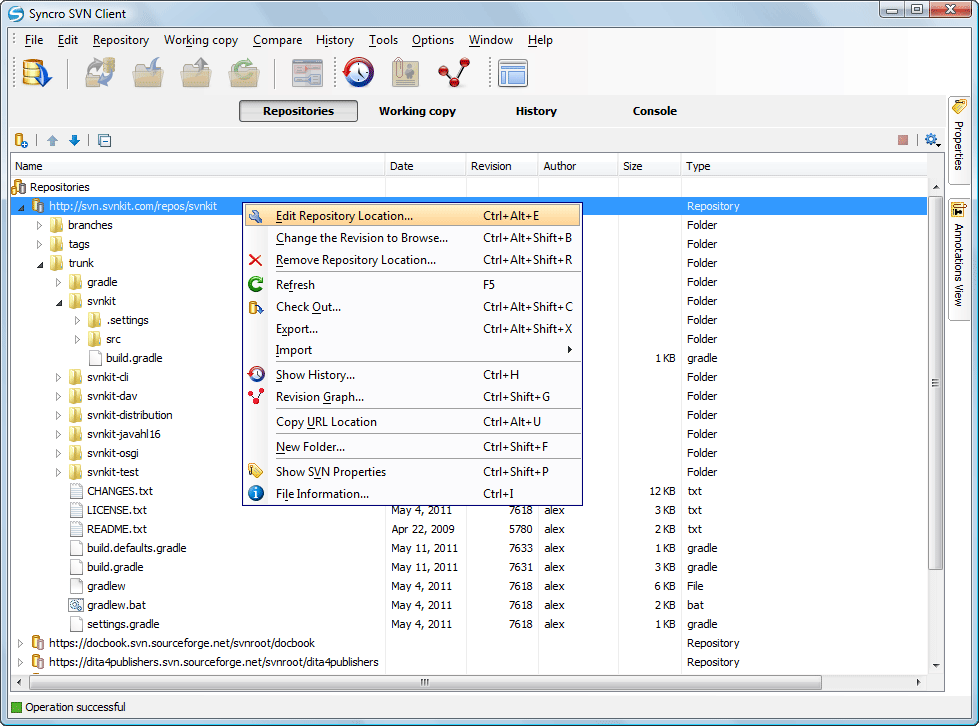
You can add multiple SVN repositories to the list accessed through various protocols (SVN, SVN + SSH, HTTP, HTTPS) and browse them in parallel. Therefore, you can identify the resources you need to checkout, or even create branches or tags directly in the repository
Synchronize Working Copy with SVN Repository
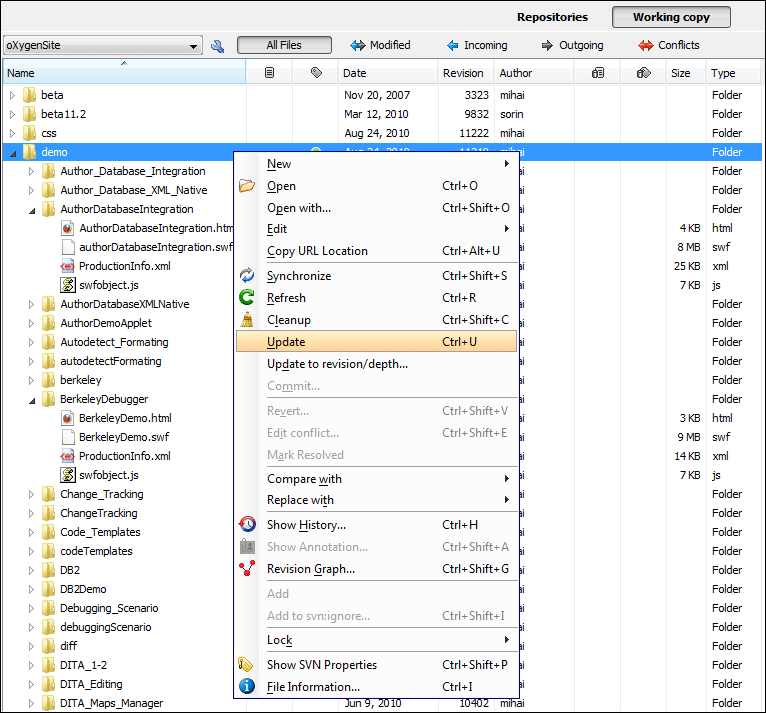
The differences between the repository resources and the working copy resources are available in the Working Copy view. The incoming modifications are available in the repository as committed by other users since you last updated your local working copy from the repository. The outgoing modifications are available only in the working copy until you commit them to the repository or discard them.
View Differences
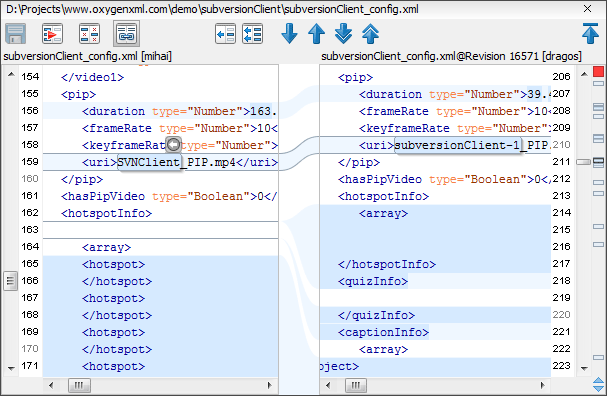
One of the most common requirements in project development is to see what changes have been made to the files from your working copy or to the files from the repository. You can examine these changes (after a synchronize operation with the repository) by using the Open in compare editor action from the contextual menu.
View Resource History
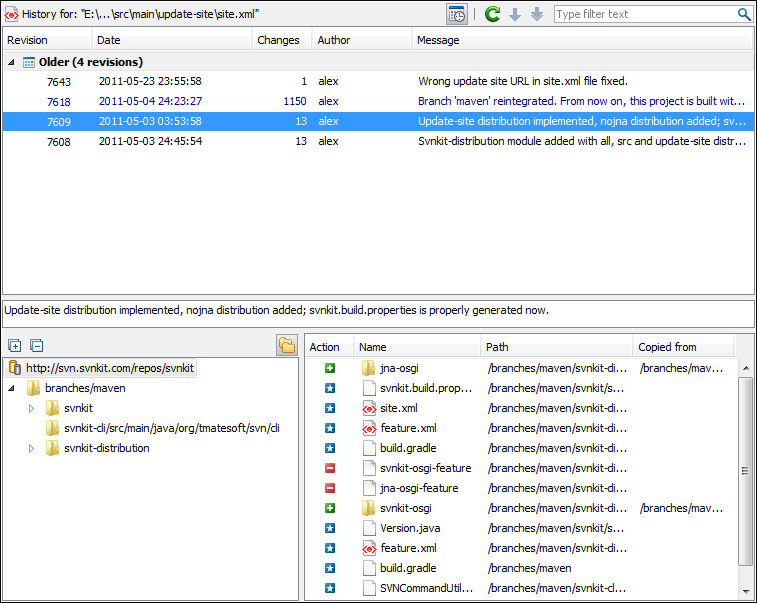
In Apache SubversionTM, both files and directories are versioned and have a history. If you want to examine the history for a selected resource and find out what happened at a certain revision, you can use the History view.
To see the entire list of actions and working scenarios, please consult the User Manual.