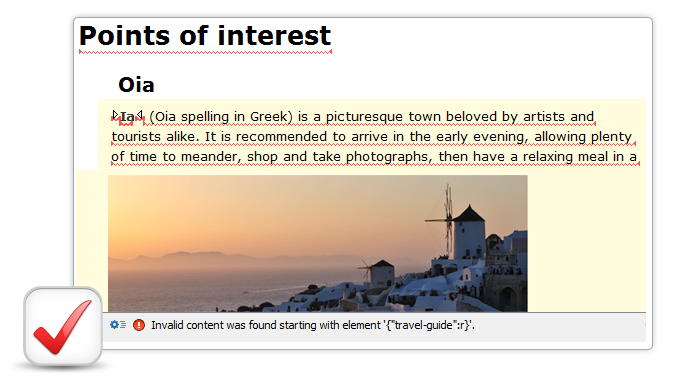
Generic Visual XML Editor
Oxygen allows you to visually edit any XML document. By default, Oxygen
includes out-of-the-box capabilities for content review, change tracking, profiling, and
conditional text, all of which are independent from XML vocabulary. Driven by CSS
stylesheets, Oxygen is simple to use and highly customizable.
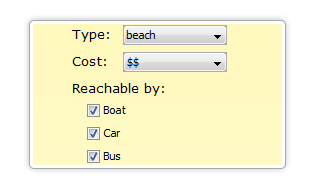
- Customizable XML EditorThe Author mode in Oxygen XML Editor offers you a productive way to author XML documents, in a manner similar to using a word processor. Oxygen can easily be customized to visually edit any XML document according to your organizational needs and preferences.read more
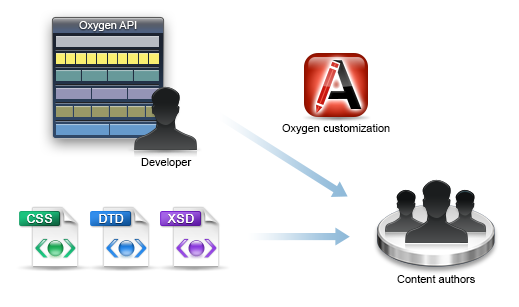
- User-Friendly XML Visual EditingOxygen makes XML document authoring much easier than editing with an unstructured word processing application. Oxygen keeps your documents more organized and efficient by only allowing valid structure and eliminating the need to encode semantics into arbitrary styling. It also reduces the time used in editing content by guiding the author through the process.read more
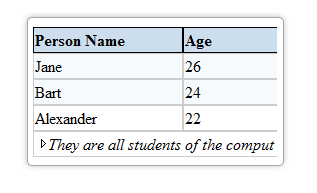 Built-in Table SupportOxygen offers built-in support for both CALS and HTML table models. If your XML vocabulary adheres to one of those models, Oxygen will automatically detect the table elements and structure the content in a tabular fashion. If your XML vocabulary uses other table standards, you can use the standard W3C CSS table styling properties in the associated stylesheet.read more
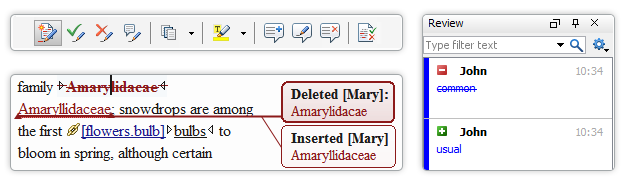
- Review ToolsOxygen includes a variety of helpful review tools that improve your ability to collaborate with other members of your team. The review features include the ability to track changes, mark content for various reasons, add comments or comment threads in your content, manage the review features, and to search comments or changes.read more
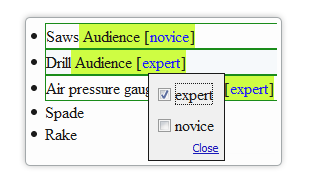
- Profiling/Conditional TextProfiling text is a way to mark blocks of text meant to appear in some renditions of the document but not in others. For example, you can mark a section of a document that is to be included in a manual to be designated for 'expert' users and another section for 'novice' users, while unmarked sections are included in all renditions.read more
- Constant Validation Keeping the content valid at all times is a top priority. As a result, Oxygen will automatically reject actions that will make the document invalid and propose solutions to keep the document valid. Document validation is performed automatically each time the document is changed.read more